GTAVIWikiTHE INDEPENDENT FIELD GUIDE
GTAVIWiki / Reference dossier

GTA6 controls and controller settings

Pause the game, open Settings and choose Control Scheme to find your layout. Rockstar documents the menu path and the layouts by activity. Individual PS5 and Xbox button assignments are still unverified on this wiki.

Independent editorial summary

ControlsGTAVIWIKI / EDITORIAL SERIES
Illustration: GTAVIWiki original SVG. Symbolic editorial artwork, not game footage, a character likeness or an in-game map.
Find another entry
Controller layouts

Find the controls for your activity

Link to this section ↗
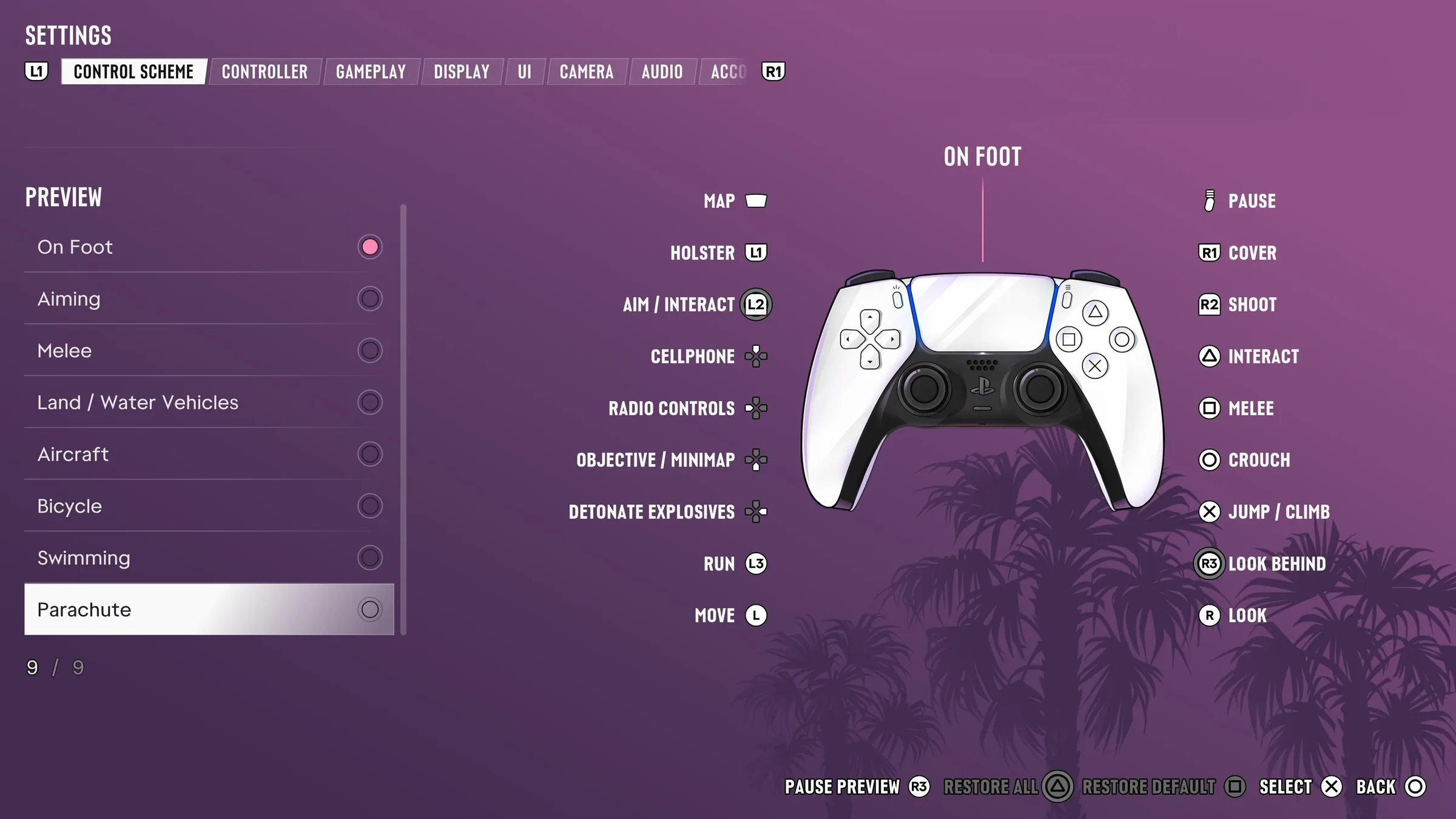
PS5 Control Scheme screen with an activity list on the left and the On Foot controller diagram on the right.
PS5, build 930.048.020. The diagram shows On Foot. Select Land / Water Vehicles in the list on the left to see the driving layout. Screenshot: ViceManual (vicemanual.com) · Game imagery © Rockstar Games.

Choose On Foot for walking, Aiming for aim controls or Melee for close combat. Driving a car or piloting a boat? Open the land and water vehicle layout. Aircraft, bicycles, swimming and parachuting each have their own layout.

Source: Rockstar Support guide to GTA VI settings ↗

Controller settings

Adjust how the sticks and triggers feel

Link to this section ↗
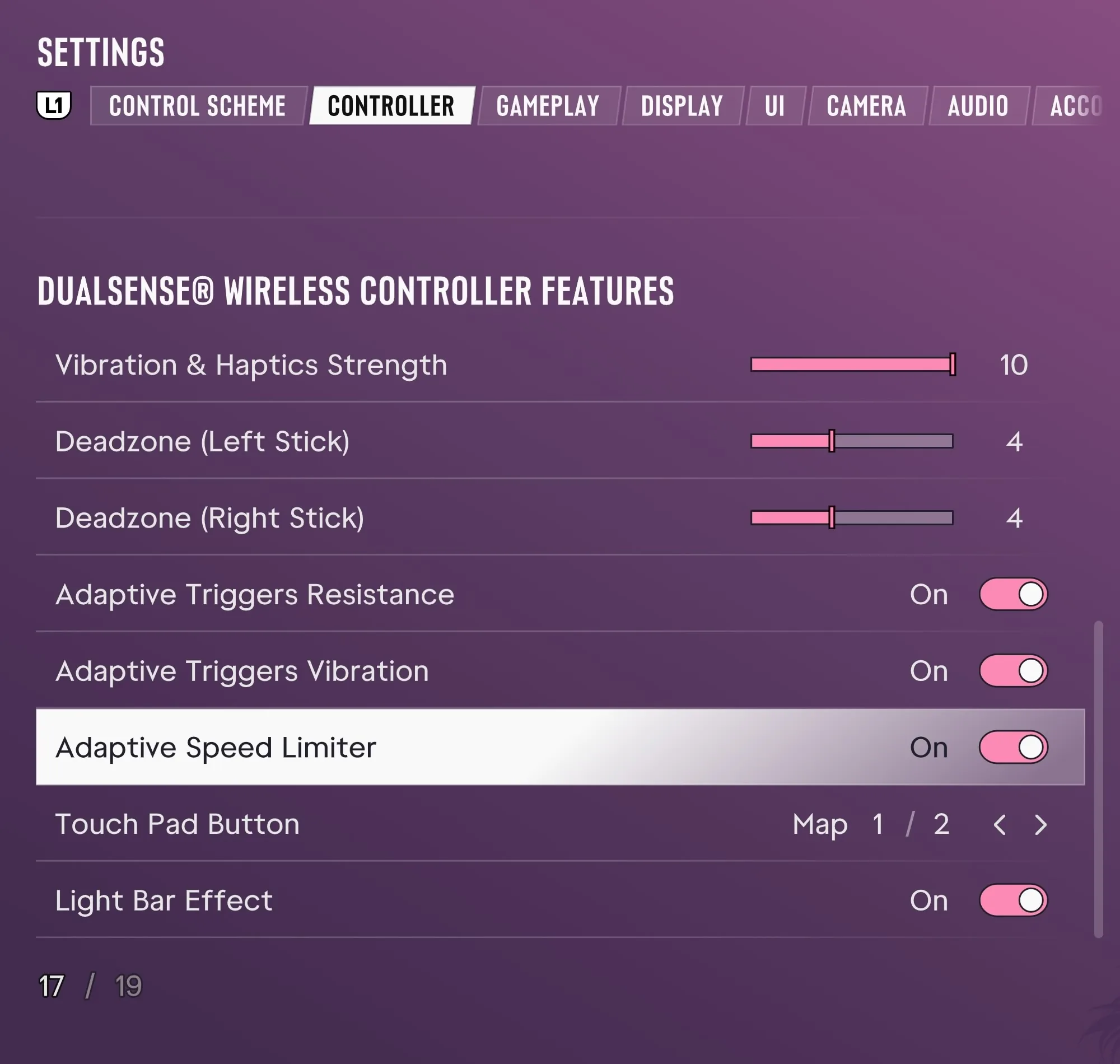
The PS5 Controller tab showing DualSense vibration strength, left and right stick deadzones and adaptive trigger settings.
PS5, build 930.048.020. Open Controller beside Control Scheme. This part of the menu shows the two stick deadzones and the DualSense trigger options. Screenshot: ViceManual (vicemanual.com) · Game imagery © Rockstar Games.

Under Settings, open Controller to adjust look or aim sensitivity, invert controls or change DualSense features on PS5. To undo changes, use the restore option at the bottom of the settings screen.

Sources & corrections

Follow the source links for the material used in this guide.

Read the source ↗

Spotted an error? Send a correction in the discussion area, including the page and a reliable source.